Product
How to Connect Raycast to Telegram via MCP

Connect Raycast to your Telegram via MCP
Raycast is the keyboard-first launcher that has quietly become the command center for a lot of Mac power users. You hit a hotkey, type a few characters, and you are searching, calculating, running scripts, or talking to Raycast AI — all without lifting your hands from the keyboard or switching apps. With MCP support, Raycast AI can now reach external tools, and that is where Entergram comes in. Entergram's Telegram MCP server connects your personal Telegram account — not a bot — to Raycast through the Model Context Protocol, so you can ask about your real Telegram chats and act on them from the same keystroke you already use for everything else.
This guide is part of our connect any AI tool to Telegram MCP hub, and the dedicated Raycast Telegram MCP page covers the connector in full. For the bigger picture, the Telegram MCP hub explains how Entergram exposes Telegram to every MCP-compatible client.
What the Telegram MCP server does
MCP is the open standard that lets Raycast AI load external capabilities on demand. Rather than building a one-off Telegram integration, Raycast points at a single MCP endpoint — https://mcp.entergram.com/mcp — and discovers the available tools automatically. Once connected, Raycast AI can:
- List and read chats — private messages, groups, and channels from your connected accounts.
- Look up contacts and custom fields — stage, owner, tags, and any structured CRM data on a chat.
- Create and update tickets — capture a follow-up the moment you spot it.
- Send messages and broadcasts — fire off a reply or a templated broadcast.
This is your real Telegram account, surfaced through a permissioned CRM layer rather than the limited Bot API. Raycast sees exactly the chats you do, scoped to what you allow.
Why Raycast and Telegram fit together
Raycast's superpower is speed of access. The whole point is to remove the friction of opening an app, finding the right window, and clicking around. Telegram, for many people, is precisely that kind of friction: a busy inbox full of clients, leads, and groups that demands constant attention and pulls you out of focus.
Putting Telegram behind a Raycast keystroke flips that around. Instead of opening Telegram "just to check," you ask Raycast AI a direct question and get a direct answer:
- "Who messaged me in the last hour that I haven't replied to?"
- "Which clients are waiting on me right now?"
- "Did anyone in the Demo stage go quiet this week?"
You stay in whatever you were doing, get the answer in a panel, and act only if you need to. For people who live in Raycast all day, this is the most natural place a Telegram assistant could possibly live — no new window, no context switch, no doom-scroll.
How to connect Raycast (3 steps)
Step 1 — Create an OAuth client in Entergram
In your Entergram workspace, open Settings → Developer, click Create new OAuth client, and choose the Custom preset. Pick scopes deliberately. Because Raycast is often a quick, ad-hoc way to check things, many people start it read-only (chats.read, contacts.read, custom_fields.read) and add write scopes such as chats.write only once they want to send replies or open tickets directly from a Raycast command. Least privilege keeps the surface small.
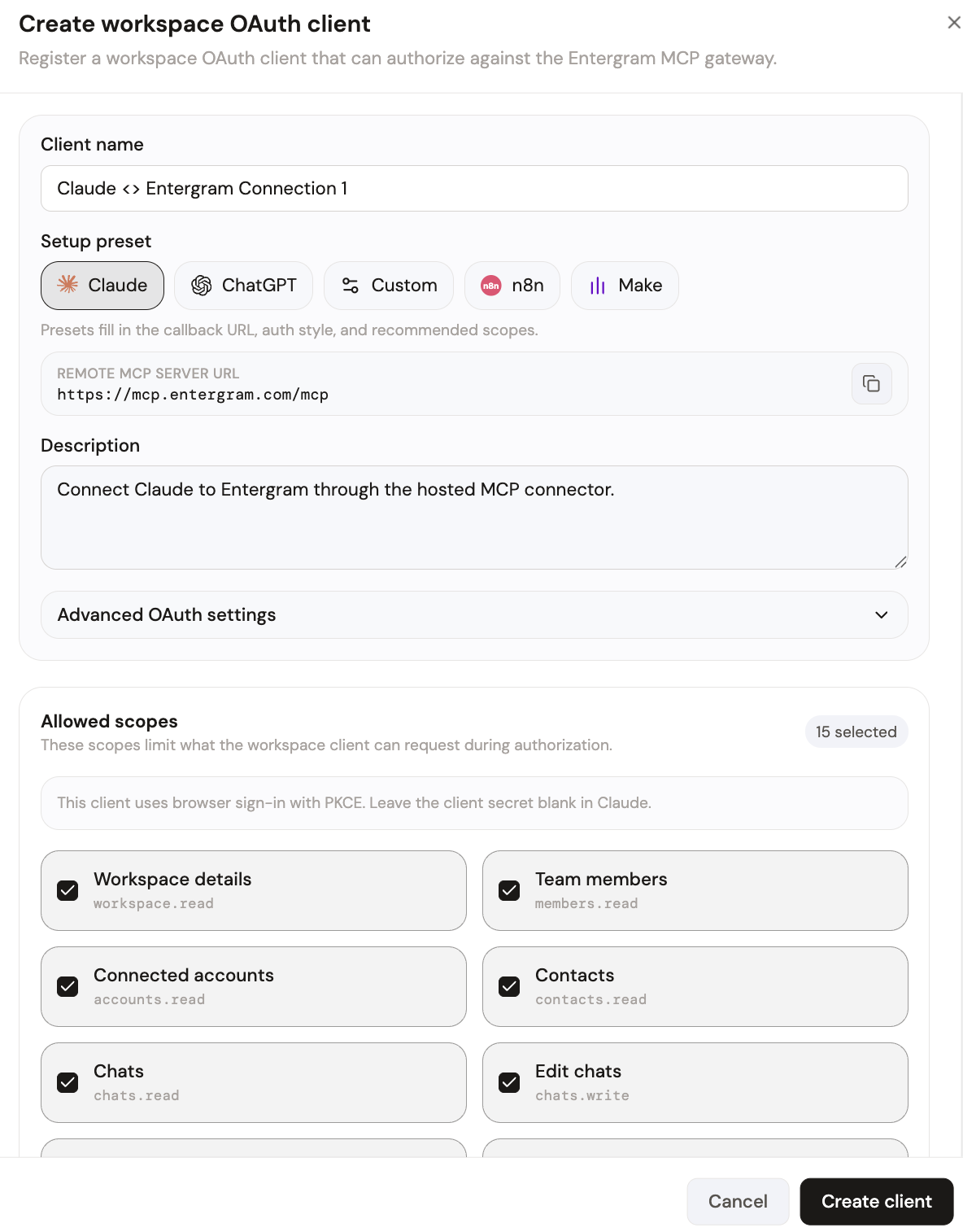
Your MCP server URL is:
Step 2 — Add the Entergram MCP server in Raycast
Open Raycast settings and go to the AI section, where Raycast manages its MCP servers. Add a new server pointing at the endpoint above, and supply the credentials from the OAuth client you just created so Raycast can authenticate. The Raycast Telegram MCP page has the exact values to enter. Raycast AI loads the Entergram tools and makes them available to AI Chat and AI Commands.
Note that Raycast AI features require a Raycast Pro plan; MCP servers run on top of that. Once the server is added, you do not need to configure anything per command — the tools are simply available whenever you talk to Raycast AI.
The first time Raycast connects, approve the request on Entergram's authorization screen, which lists the exact permissions being granted. Click Allow access.
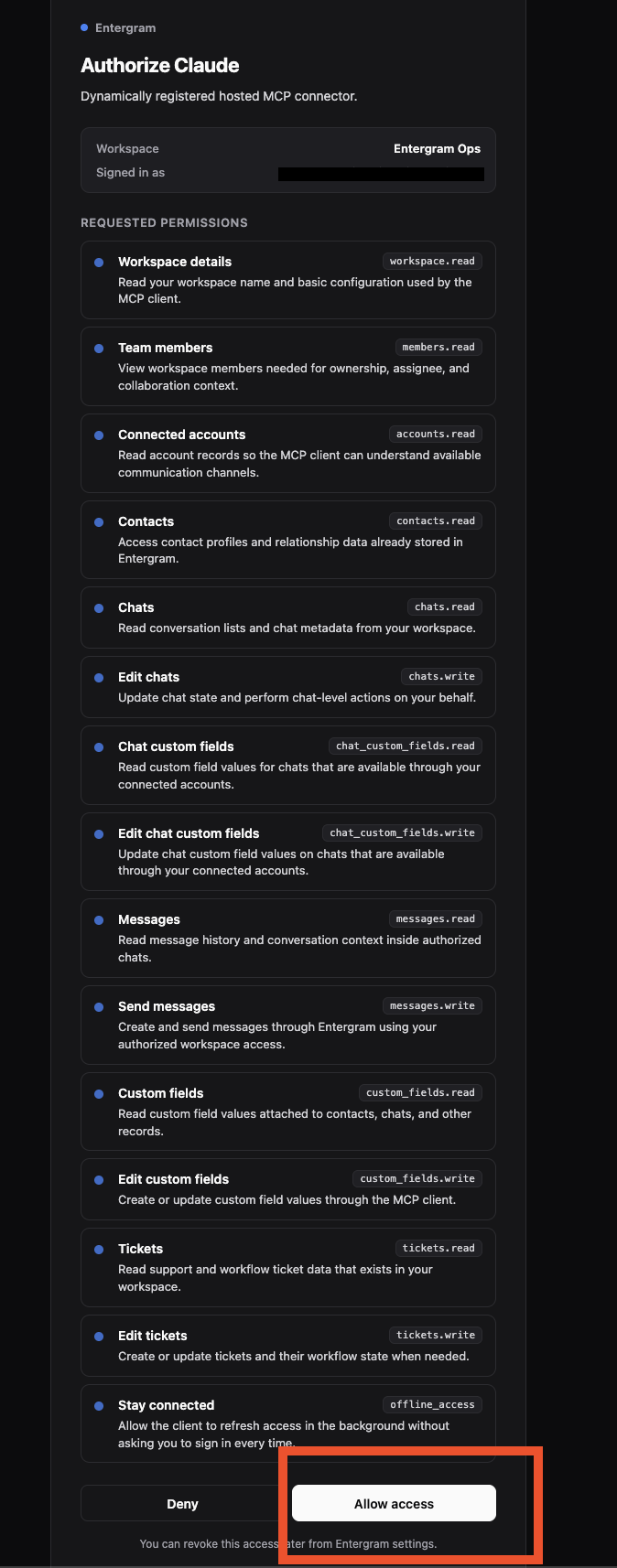
Your Telegram tools are now a keystroke away, and you can revoke them instantly from Settings → Developer at any time.
What you can do once connected
Because Raycast is built for quick invocation, the best Telegram workflows here are short and answer-shaped:
- "How many people are waiting on a reply from me right now?" A one-line status check before you decide whether to open Telegram at all.
- "Summarize my unread chats from the last two hours." Triage without scrolling.
- "Find the chat with Acme and tell me where the deal stands." Raycast reads the chat and the CRM fields and gives you the state in a sentence.
- "Reply to the last message from Jordan letting them know the invoice is sent." With write scopes granted, Raycast drafts and sends without you opening the app.
- "Open a high-priority ticket on the chat with the refund complaint." Capture the follow-up the instant you notice it.
Each is a real MCP tool call against your workspace, returned inside Raycast. The value is not depth — it is that the answer arrives in the two seconds it takes to type the question, instead of the two minutes it takes to open Telegram and lose your train of thought.
Security and access control
Connecting your real Telegram account to a tool you trigger dozens of times a day deserves the same care as any other integration. Access is governed by OAuth scopes, so you decide exactly what Raycast may read and write. A read-only setup is a great default for a quick-check tool; grant write scopes only when you genuinely want to send from Raycast. There is one OAuth client per user, revocable instantly from Settings → Developer.
Entergram relays your Telegram session server-side and stores credentials encrypted, so Raycast works through the CRM layer rather than holding your raw Telegram login. Message content is not retained for training, and every write action is recorded in the workspace activity log with an actor and timestamp. If you ever stop using Raycast, revoking its OAuth client removes its access everywhere at once.
Turn it into a saved AI Command
Once the connection works in AI Chat, the natural next step is to capture the prompts you repeat as AI Commands. Save "Summarize my unread Telegram chats from the last two hours" as a command bound to a hotkey, and your morning triage becomes a single keystroke. Do the same for "List the clients waiting on a reply" or "Show deals that went quiet this week." Because AI Commands accept selected text and arguments, you can also build ones like a "Draft a Telegram reply to the selected text" command that works from anywhere on macOS. The Telegram tools stay available to every command without extra setup, so each new command is just a prompt you write once and trigger forever — exactly the Raycast philosophy applied to your busiest inbox. Over a week, the handful of commands you save will quietly replace most of the reasons you used to open Telegram at all.
Get started
If your Entergram plan includes API access, the MCP connector is ready. Create your connection now, follow the full walkthrough on the Raycast Telegram MCP page, or browse every supported client in the connect any AI hub. For the underlying setup details — OAuth clients, scopes, and troubleshooting — see the step-by-step MCP guide. Raycast gives you the fastest possible way to reach your tools; Entergram makes your real Telegram CRM one of them, so checking in on your most demanding inbox finally costs a keystroke instead of your focus.
Ready to Upgrade Your Telegram Workflow?
Don't waste another lead. Don't lose another message.
Get Started