Product
How to Connect Goose to Telegram via MCP

Connect Goose to your Telegram via MCP
Goose is Block's open-source AI agent — a local, extensible assistant that goes well beyond code suggestions. Where most assistants answer questions, Goose plans and executes multi-step work on your machine: it reads context, decides what to do, runs the tools it needs, checks the result, and keeps going until the job is done. Its whole architecture is built on extensions, and extensions are powered by the Model Context Protocol (MCP). That makes Goose a natural fit for Entergram's Telegram MCP server, which plugs your personal Telegram account — not a bot — into the agent so those autonomous runs can include real Telegram CRM operations.
This guide is part of our connect any AI tool to Telegram MCP hub, and the dedicated Goose Telegram MCP page walks through the connector with screenshots. If you want the broader picture first, the Telegram MCP hub explains how Entergram exposes Telegram to every MCP-compatible client.
What the Telegram MCP server does
MCP is the open standard Goose uses to load external capabilities into an agent run. Instead of writing a custom integration for every service, you point the agent at one MCP endpoint and it discovers the available tools automatically. Entergram publishes its Telegram actions at a single hosted endpoint, https://mcp.entergram.com/mcp. Once Goose connects, it can:
- List and read chats — private conversations, groups, and channels from your connected accounts.
- Look up contacts and custom fields — stage, owner, ARR, tags, and any structured data you keep on a chat.
- Create and update tickets — with status, priority, and assignee.
- Send messages and broadcasts — replies, follow-ups, or a personalized broadcast from a saved template.
Crucially, this is your real Telegram account, surfaced through a permissioned CRM layer — not the limited Bot API. Goose sees the same chats you do, governed by the scopes you grant.
Why Goose and Telegram fit together
Goose is built for chained, autonomous work, and that is exactly where a Telegram connection pays off. A single instruction can drive an entire sequence of CRM steps without you touching a GUI:
- Read everything that came in overnight, classify it, and triage the urgent items.
- Cross-reference each sender against their CRM stage before deciding how to respond.
- Open tickets, update fields, and post a summary — all in one run.
Because Goose runs locally and keeps its own session, it can do this repeatedly and on a schedule. The Telegram MCP server simply becomes another extension it reaches for, the same way it reaches for a file system or a shell. You describe the outcome; Goose figures out which Telegram tools to call and in what order.
How to connect Goose (3 steps)
Step 1 — Create an OAuth client in Entergram
In your Entergram workspace, open Settings → Developer, click Create new OAuth client, and choose the Custom preset. Pick scopes deliberately. Because Goose acts autonomously and in sequences, many teams start it read-only (chats.read, contacts.read, custom_fields.read) and add write scopes such as chats.write or ticket permissions only once they trust a given workflow. Least privilege limits the blast radius if anything goes wrong.
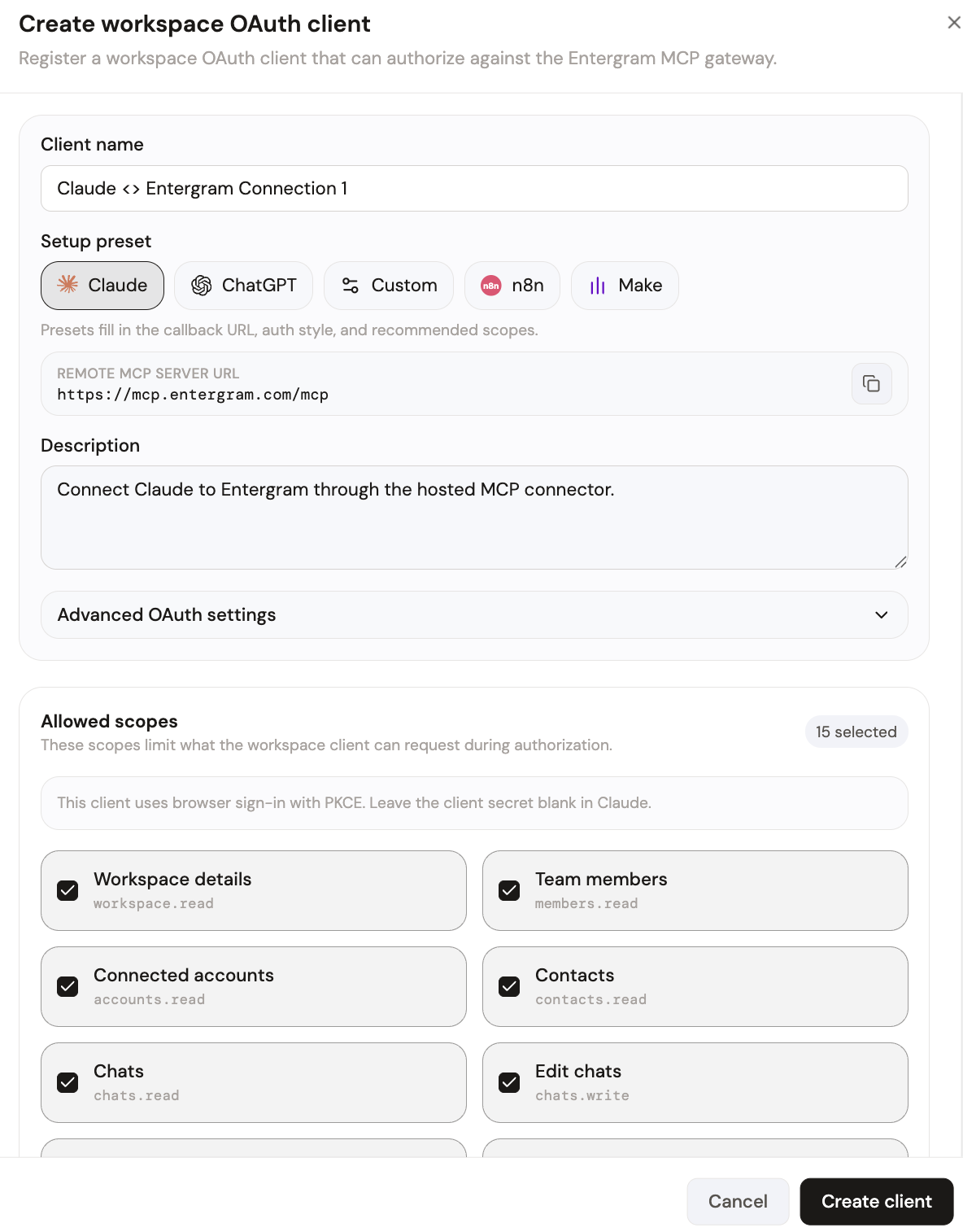
Your MCP server URL is:
Step 2 — Add Entergram as a Goose extension
Goose stores its extensions in ~/.config/goose/config.yaml, and you can add one interactively with goose configure. Choose Add Extension → Remote Extension, give it a name like entergram-telegram, and paste the endpoint above. Supply the credentials from the OAuth client you just created so Goose can authenticate. The Goose Telegram MCP page has the exact configuration block, including the headers Goose expects. On the next launch, Goose loads the Entergram tools and lists them alongside its built-in extensions.
If you prefer editing the config file directly, add the Entergram entry under the extensions key with its type set to a remote MCP server and the URL pointing at https://mcp.entergram.com/mcp. Either path produces the same result.
The first time Goose connects, you approve the request on Entergram's authorization screen, which lists the exact permissions being granted. Click Allow access.
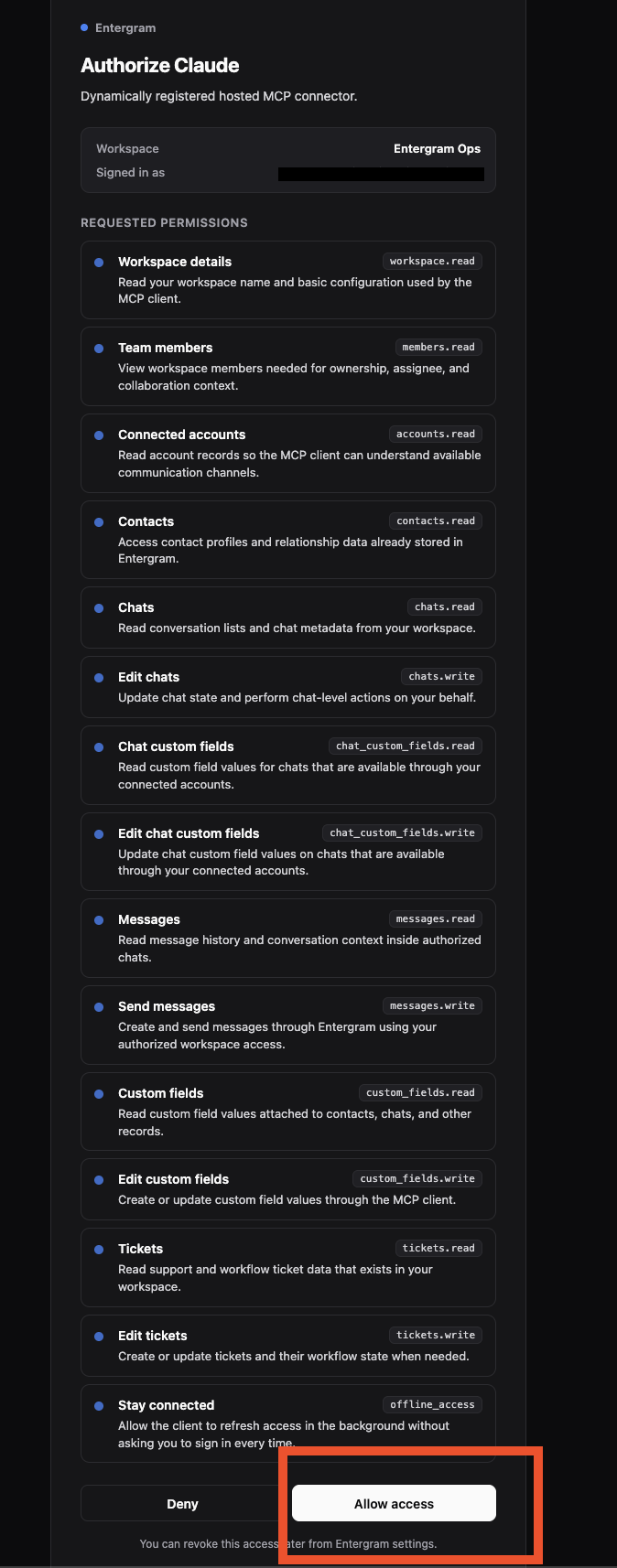
From that point on, the Telegram tools are available to Goose in every session, and you can revoke them instantly from Settings → Developer.
What you can do once connected
Goose is at its best when a single prompt unfolds into a sequence of real actions. Some realistic examples:
- "Read every chat tagged support from the last 24 hours, classify each by urgency, open tickets for the urgent ones, and write me a summary." Goose reads the chats, calls the ticket tool for each urgent case, and reports back — one prompt, many steps.
- "Find every contact who mentioned 'invoice' this week, set their priority field to high, and draft a reply for each." The agent searches, updates custom fields, and prepares responses without you opening the app.
- "Pull this week's response-time stats and append them to my weekly report." Goose reads the analytics and writes them wherever you keep your notes.
- "Check which leads in the Demo stage haven't replied in three days and remind me with a list." A daily standup for your Telegram pipeline, generated on demand.
Each of those is a chain of MCP tool calls against your workspace. You are not scripting the steps; you are stating the goal and letting Goose orchestrate the Telegram operations in the right order.
Security and access control
Handing an autonomous agent access to your real Telegram account deserves care, and the connector is built for exactly that. Access is governed by OAuth scopes, so you decide precisely what Goose may read and write. Start read-only, prove a workflow, then grant the minimum write scopes it needs — nothing more. There is one OAuth client per user, and you can revoke it instantly from Settings → Developer, which immediately cuts off every Goose session using it.
Entergram relays your Telegram session server-side and stores credentials encrypted; the agent works through the CRM layer rather than holding your raw Telegram login. Message content is not retained for training, and every action an agent takes is recorded in the workspace activity log with an actor and timestamp, so an autonomous run is always auditable after the fact. For teams, that audit trail is often what makes letting an agent act — rather than just advise — acceptable in the first place.
Running Goose on a schedule
Because Goose runs from the command line, the same Telegram workflows you trigger by hand can run unattended. Wrap a prompt in a goose run invocation and schedule it with cron, a launchd job, or your CI runner, and you have a recurring agent: a 7 a.m. triage that opens tickets for anything urgent that came in overnight, an end-of-day sweep that flags leads who went quiet, or an hourly check that pings you only when a VIP contact messages. The MCP connection behaves identically whether a human or a scheduler started the run, and the OAuth scopes you granted still apply, so a scheduled Goose reads and acts within exactly the same limits. Keep scheduled runs read-only until you have watched a few execute cleanly, then widen the scopes once the behavior is predictable. This is where the autonomous design earns its keep — the agent does the watching so you do not have to.
Get started
If your Entergram plan includes API access, the MCP connector is ready to use. Create your connection now, follow the full walkthrough on the Goose Telegram MCP page, or explore every supported client in the connect any AI hub. For the underlying setup details, the step-by-step MCP guide covers OAuth clients, scopes, and troubleshooting. Goose brings the autonomy; Entergram brings your real Telegram CRM — together they turn a backlog of unread chats into work that gets done while you focus elsewhere.
Ready to Upgrade Your Telegram Workflow?
Don't waste another lead. Don't lose another message.
Get Started