Connect Entergram via MCP
Entergram hosts a remote MCP (Model Context Protocol) endpoint that lets you connect your Telegram workspace to AI tools and automation platforms.
MCP Server URL:
https://mcp.entergram.com/mcpBefore you start
Section titled “Before you start”- An Entergram workspace with owner or admin access
- An account on the app you want to connect (Claude, ChatGPT, n8n, etc.)
Connect to Claude
Section titled “Connect to Claude”Step 1. In Entergram, go to Settings → Developer → Create new OAuth client. Select the Claude preset. Click Create.
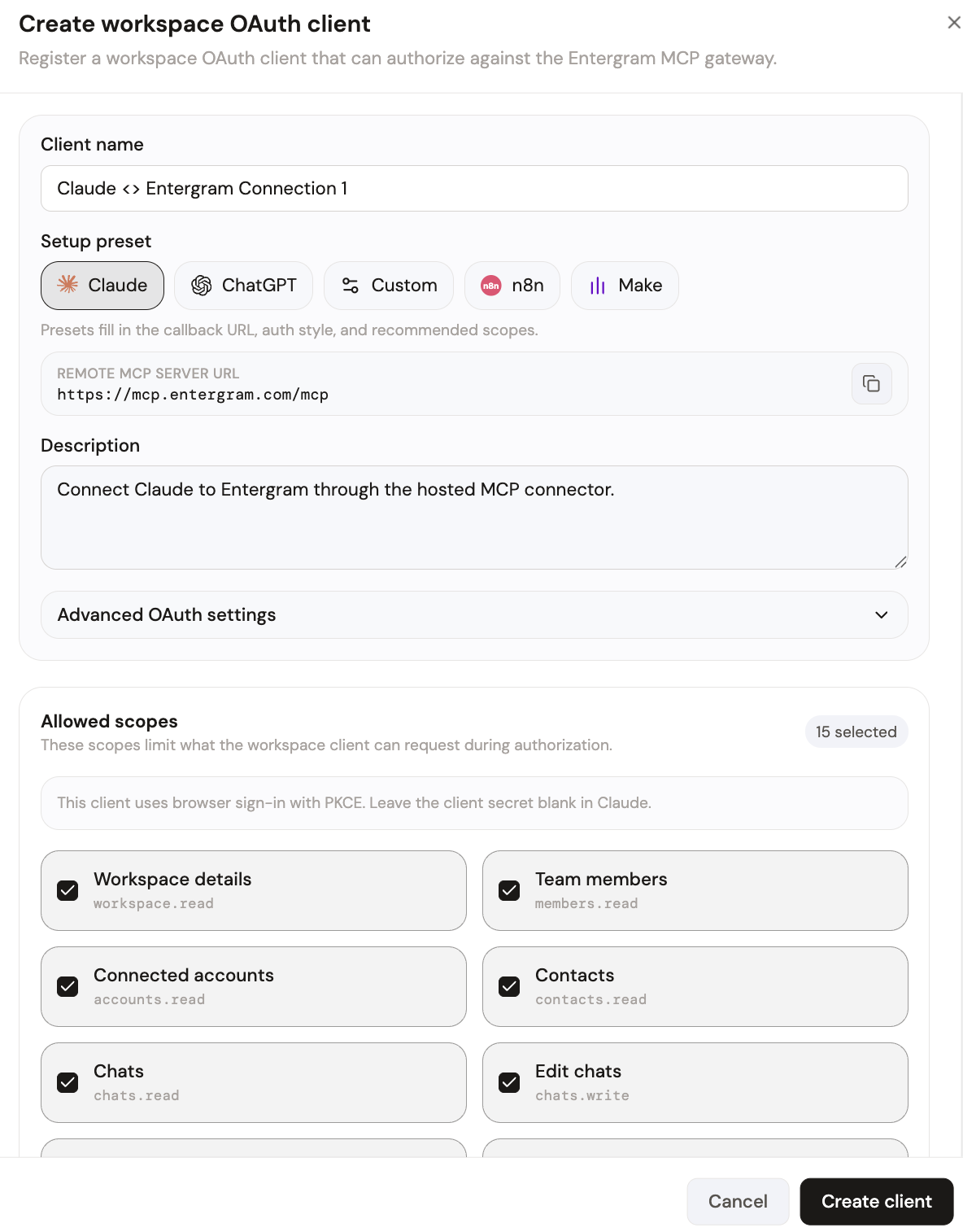
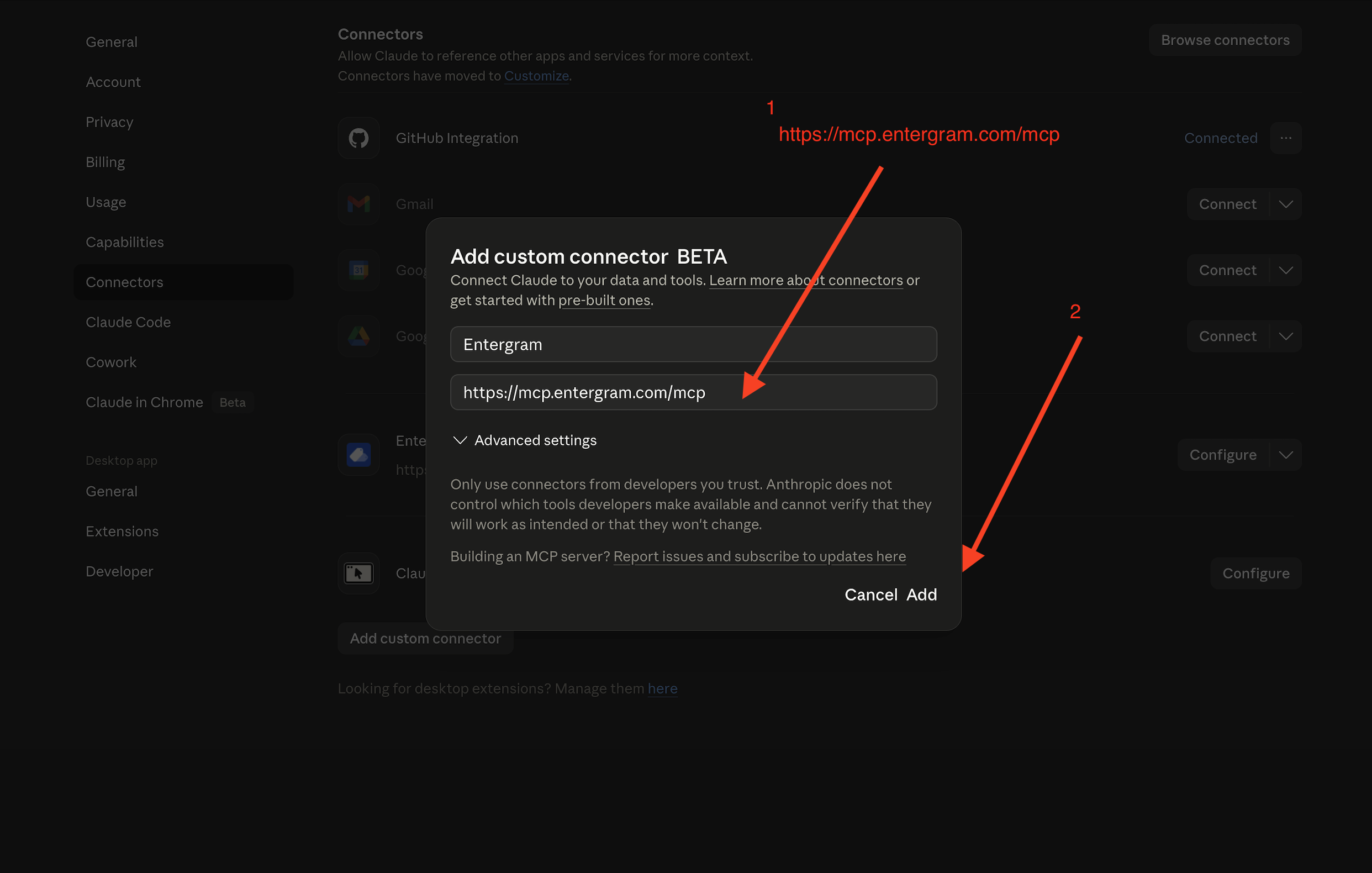
Step 2. In Claude, go to Settings → Connectors → Add custom connector. Enter Entergram as the name and paste https://mcp.entergram.com/mcp as the URL. Click Add.
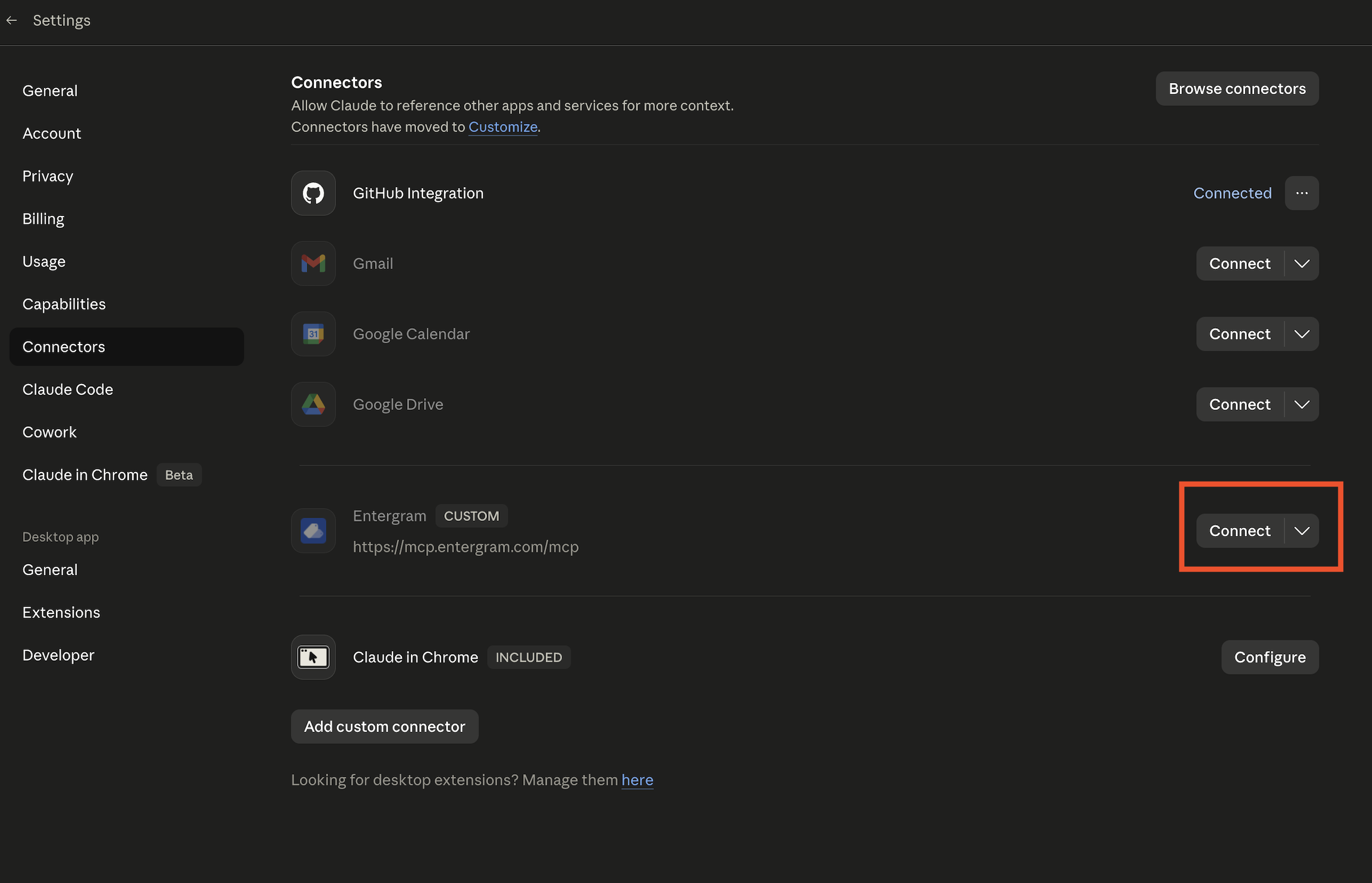
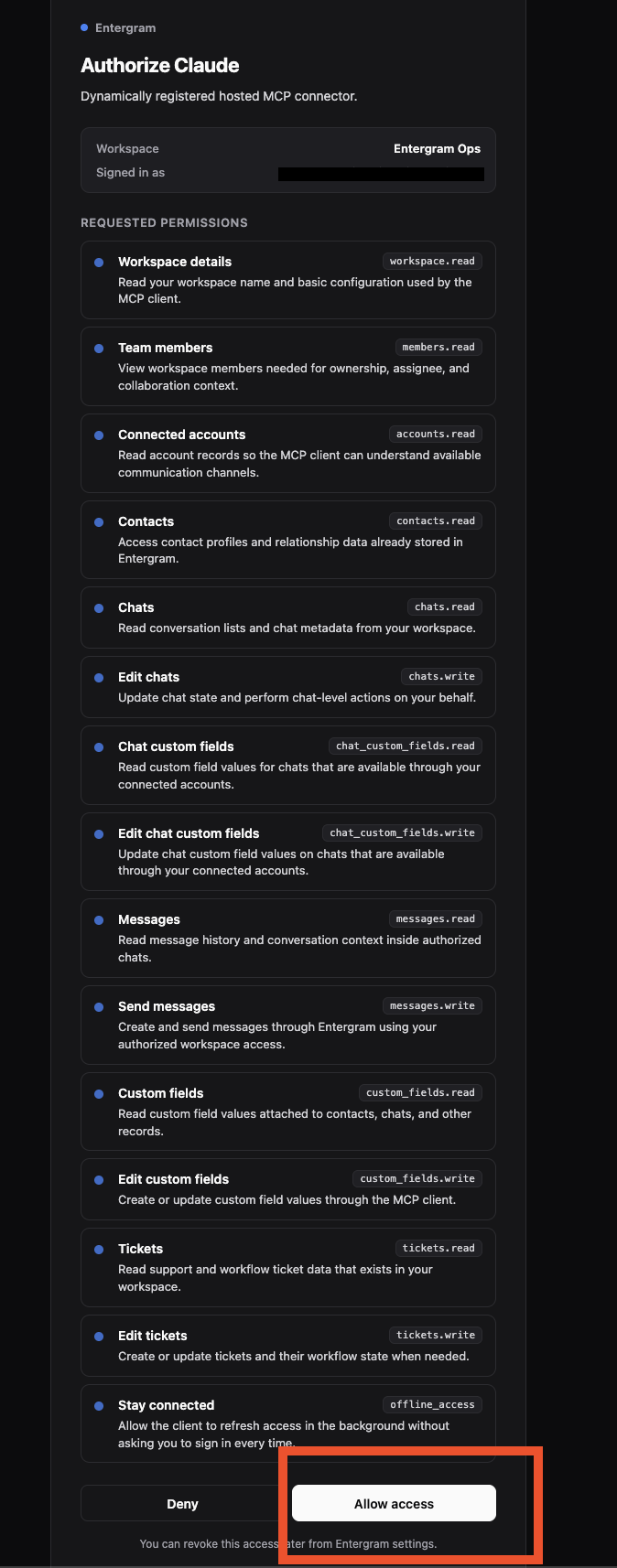
Step 3. Click Connect next to Entergram. Review the permissions on the authorization page and click Allow access.
Done. Open a new Claude chat and try: “List my Entergram workspaces.”
Connect to ChatGPT
Section titled “Connect to ChatGPT”Step 1. In Entergram, go to Settings → Developer → Create new OAuth client. Select the ChatGPT preset. Click Create.
Step 2. In ChatGPT, add a custom MCP connector with the name Entergram and URL https://mcp.entergram.com/mcp.
Step 3. Click Connect, review permissions, and click Allow access.
Connect to n8n
Section titled “Connect to n8n”Step 1. In Entergram, go to Settings → Developer → Create new OAuth client. Select the n8n preset. Click Create.
Step 2. In n8n, add an MCP node and paste https://mcp.entergram.com/mcp as the server URL.
Step 3. Authenticate via the OAuth flow when prompted.
Connect to Make.com
Section titled “Connect to Make.com”Step 1. In Entergram, go to Settings → Developer → Create new OAuth client. Select the Make preset. Click Create.
Step 2. In Make.com, add an MCP module and paste https://mcp.entergram.com/mcp as the server URL.
Step 3. Authenticate via the OAuth flow when prompted.
Connect to any other MCP app
Section titled “Connect to any other MCP app”Step 1. In Entergram, go to Settings → Developer → Create new OAuth client. Select the Custom preset. Configure the callback URL for your app. Click Create.
Step 2. In your app, add the MCP server URL: https://mcp.entergram.com/mcp
Step 3. Complete the OAuth authentication flow.
Revoking access
Section titled “Revoking access”- From the connected app — find the Entergram connector and click Disconnect.
- From Entergram — Settings → Developer → find the OAuth client → Revoke. Takes effect immediately.
Troubleshooting
Section titled “Troubleshooting”- “Invalid client” on Connect — the client ID has a trailing space, or the client was revoked. Re-copy and try again.
- Authorization page doesn’t load — make sure you used the correct preset when creating the OAuth client. Custom redirect URLs must match exactly.
- 403 errors on tool calls — the OAuth client’s scopes are too narrow. Edit the client in Settings → Developer, add the missing scope, and reconnect.
- Connection drops after a while — the
offline_accessscope may not be enabled. Edit the OAuth client and make sure “Stay connected” is checked.