Outil de diffusion Telegram - Envoi en masse et actions groupées
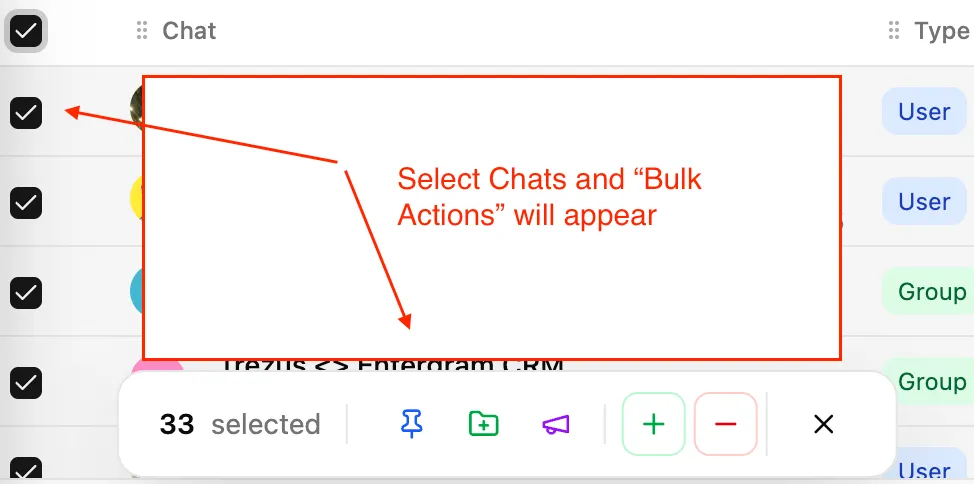
La page Conversations de votre Telegram CRM vous permet d’effectuer des actions d’envoi en masse sur Telegram sur plusieurs conversations à la fois. Sélectionnez les conversations à l’aide des cases à cocher pour faire apparaître la barre d’actions en bas de la page.
Sélectionnez les conversations : Cochez les cases à côté des conversations que vous souhaitez contacter
Ouvrir la diffusion : Cliquez sur le bouton « Diffuser » dans la barre d’actions
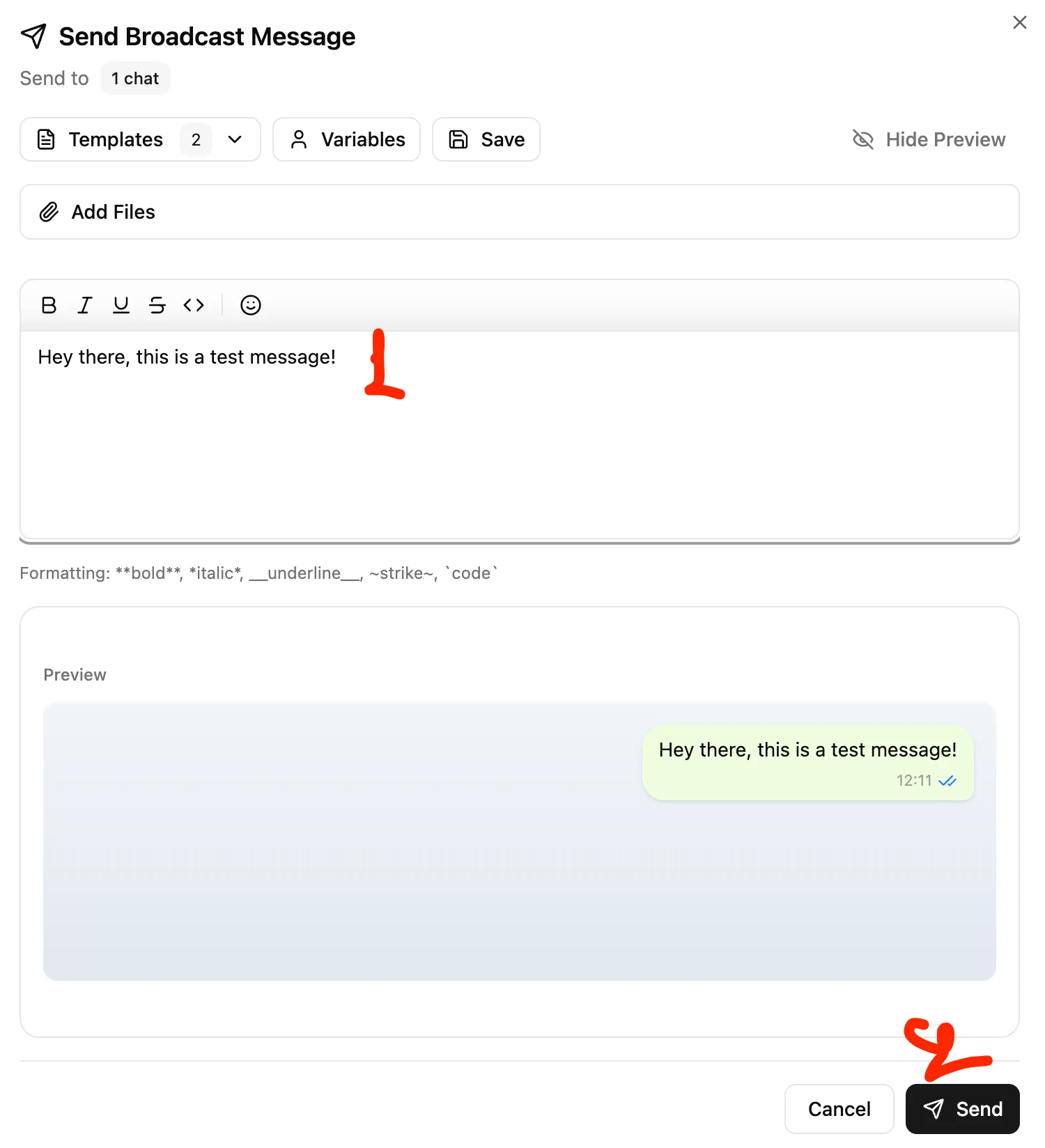
Rédigez le message : Saisissez votre texte (compatible avec le formatage markdown)
Ajoutez des pièces jointes : Joignez éventuellement des fichiers ou des images
Aperçu : Vérifiez votre message avant l’envoi
Envoyer : Cliquez sur Envoyer pour transmettre à toutes les conversations sélectionnées
Remarque : Si votre message contient à la fois du formatage markdown et une pièce jointe, Telegram les envoie sous forme de messages séparés en raison des limitations de l’API.
Variables de personnalisation pour la prospection Telegram
Rendez vos diffusions plus personnelles en insérant des variables qui se remplissent automatiquement pour chaque destinataire dans votre outil de prospection Telegram :
Variable
Fonctionne avec
Exemple de résultat
name
Conversations privées, groupes
« Jean Dupont » ou « Équipe Marketing »
first_name
Conversations privées, groupes
« Jean » ou « Marketing »
username
Conversations privées uniquement
« jeandupont »
Syntaxe des variables : Entourez les noms de variables de doubles accolades, par ex., name devient la variable de modèle pour le nom complet du contact.
Exemple de modèle :
Bonjour [first_name], je fais suite à notre conversation...
Remplacez [first_name] par des doubles accolades autour du nom de la variable.
Combinez filtrage et actions groupées dans votre Telegram CRM : filtrez votre tableau par une étiquette spécifique, sélectionnez toutes les conversations visibles (jusqu’à 200), puis appliquez une autre action à toutes en une seule fois.