Connect Entergram to Claude
Connect Entergram to Claude as a custom MCP connector so you can read and act on your Telegram CRM directly from a chat.
MCP Server URL:
https://mcp.entergram.com/mcpBefore you start
Section titled “Before you start”- An Entergram workspace with owner or admin access.
- A Claude account. Custom connectors via remote MCP work on Free, Pro, Max, Team, and Enterprise plans (Free is limited to one custom connector; the feature is currently in beta).
- No download required. You can add the connector in the Claude web app at claude.ai. Claude Desktop and Cowork also work. Because Entergram is a hosted (remote) MCP server, there’s no local config file or bridge tool to install.
On Team and Enterprise plans only an Owner can add the connector for the organization. Members then connect it individually — see the Team & Enterprise section below.
Connect (Free, Pro, Max)
Section titled “Connect (Free, Pro, Max)”Step 1. In Entergram, go to Settings → Workspace → Connectors → MCP and copy your MCP server URL (https://mcp.entergram.com/mcp).
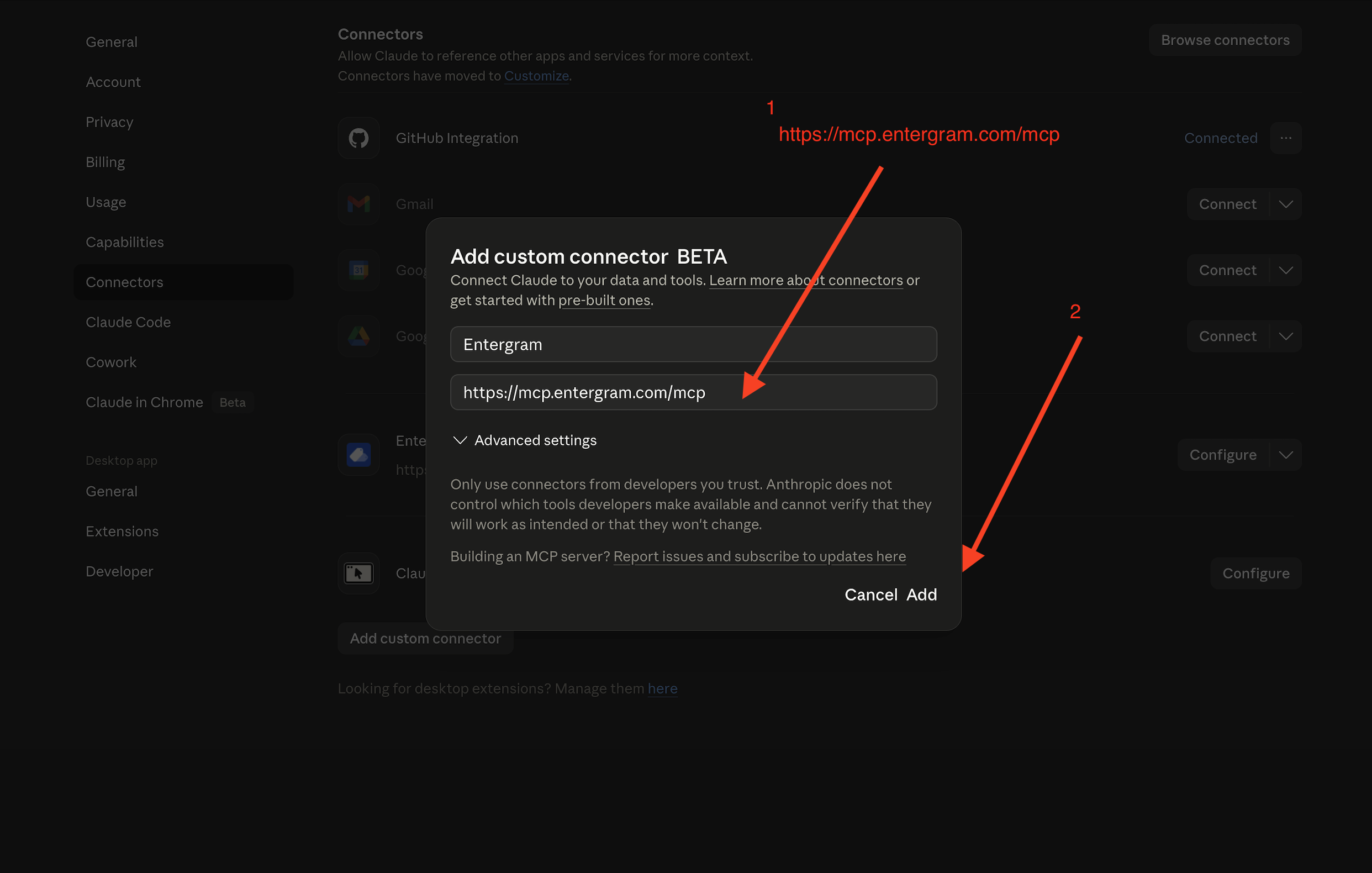
Step 2. In Claude, open Settings → Connectors and click Add custom connector. Enter Entergram as the name and paste the MCP server URL. Click Add.
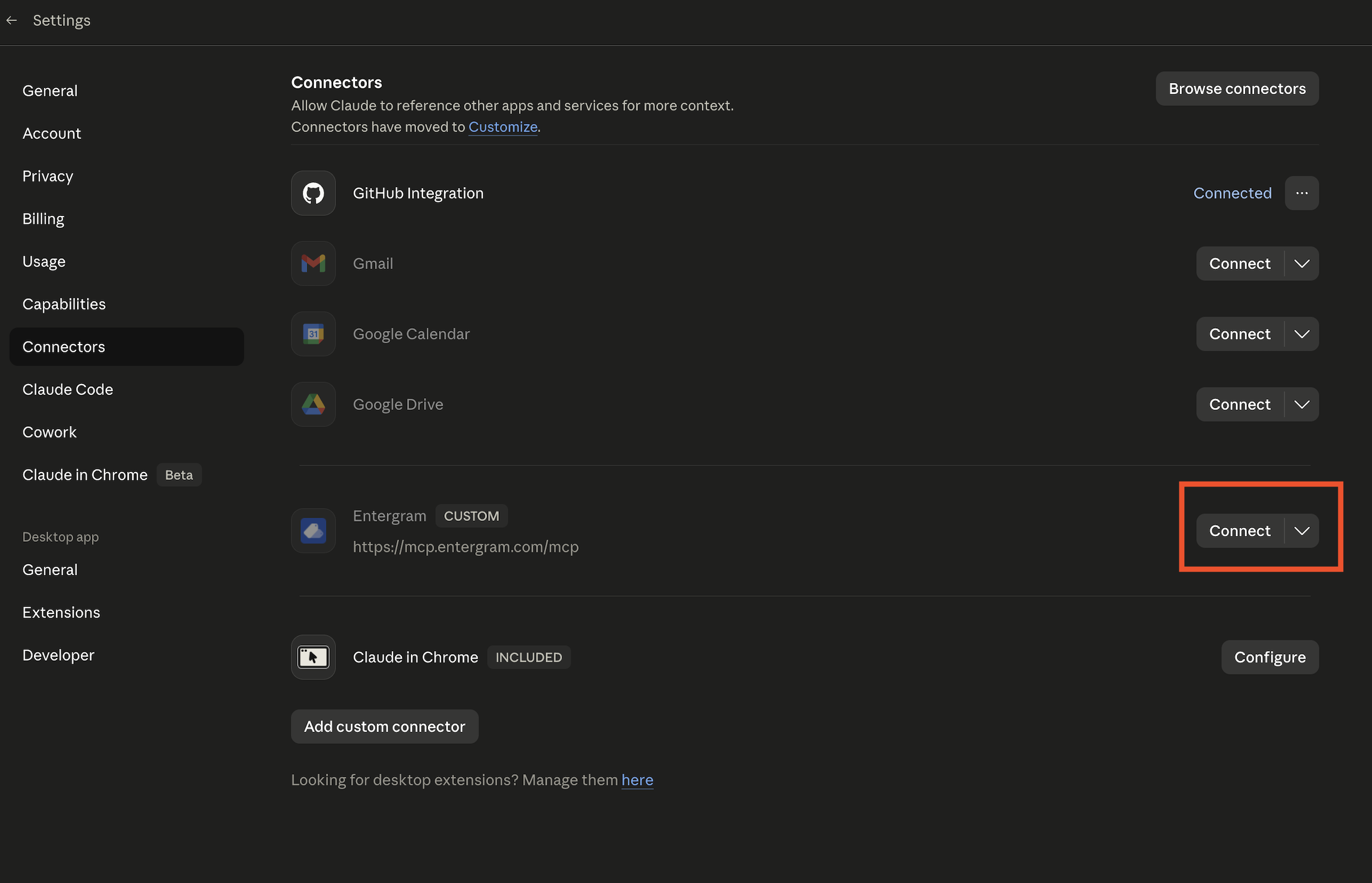
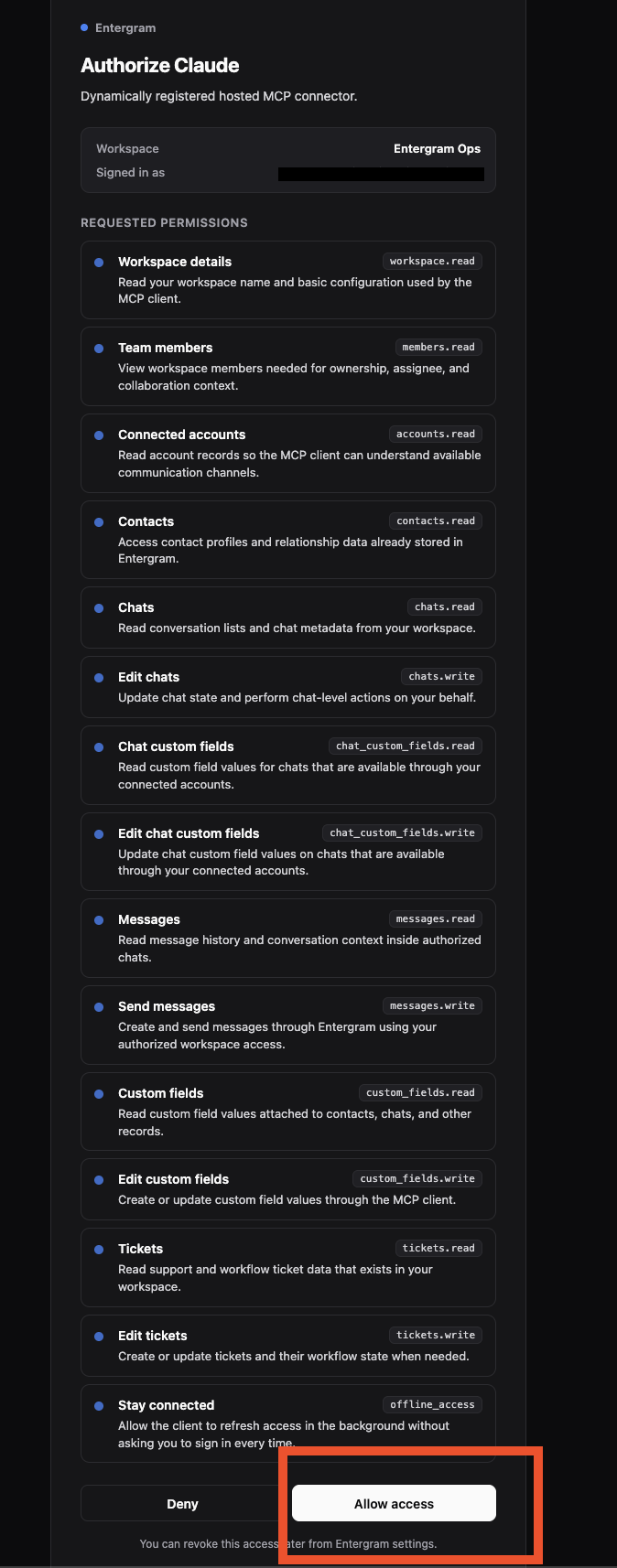
Step 3. Click Connect next to Entergram. You’ll be prompted to log in with your Entergram account — just like a “Sign in with Google” prompt. Sign in, review the permissions, and click Allow access.
Step 4. In a chat, click the + button in the message box → Connectors → enable Entergram.
Done. Open a new Claude chat and try: “List my Entergram workspaces.”
Team & Enterprise
Section titled “Team & Enterprise”Owner setup (once). Go to Organization settings → Connectors → Add. Hover Custom, choose Web, and paste https://mcp.entergram.com/mcp. Click Add.
Each member. Go to Settings → Connectors, find the Entergram connector, click Connect, log in with your Entergram account, and click Allow access.
Troubleshooting
Section titled “Troubleshooting”- Can’t connect / “invalid URL” — re-copy the MCP server URL from Settings → Workspace → Connectors → MCP in Entergram and make sure there’s no trailing space.
- No “Add custom connector” option — your plan or workspace may not have custom connectors enabled. On Team/Enterprise, ask your Owner to add it first.
- The Entergram login or authorization page doesn’t load — allow pop-ups, make sure you’re signed in to Entergram, and click Connect again.
- 403 errors on tool calls — your Entergram account needs owner or admin access to the workspace, and your plan must include MCP access.
Need the bigger picture? See the MCP Connector overview.