Connect Entergram to ChatGPT
Connect Entergram to ChatGPT as a custom MCP connector using Developer Mode, so you can read and act on your Telegram CRM from a chat.
MCP Server URL:
https://mcp.entergram.com/mcpBefore you start
Section titled “Before you start”- An Entergram workspace with owner or admin access.
- A paid ChatGPT plan — Plus, Pro, Business, Enterprise, or Education. Custom MCP connectors are not available on the free plan. On Business/Enterprise, a workspace admin must enable Developer Mode first.
- No download required. Developer Mode and custom MCP connectors run in the ChatGPT web app at chatgpt.com (the desktop app works too). ChatGPT only supports remote, HTTPS MCP servers — Entergram qualifies, so there’s no local bridge to install.
Developer Mode gives ChatGPT full read/write access to the connected tools. Write actions ask for confirmation by default — always review the tool input before approving anything that changes data.
Step 1 — Enable Developer Mode
Section titled “Step 1 — Enable Developer Mode”In ChatGPT, go to Settings → Apps & Connectors → Advanced settings and toggle Developer mode on. Accept the warning about third-party tools.
If you don’t see Advanced settings, confirm you’re on a paid plan; on Team/Enterprise, your admin must enable Developer Mode for the workspace.
Step 2 — Copy your MCP URL from Entergram
Section titled “Step 2 — Copy your MCP URL from Entergram”In Entergram, go to Settings → Workspace → Connectors → MCP and copy your MCP server URL (https://mcp.entergram.com/mcp).
Step 3 — Add the connector in ChatGPT
Section titled “Step 3 — Add the connector in ChatGPT”Go to Settings → Apps & Connectors and click Create (Add custom connector). Fill in:
- Name:
Entergram - MCP server URL:
https://mcp.entergram.com/mcp - Authentication: OAuth (no client ID or secret needed — ChatGPT discovers Entergram’s login automatically)
Click Create.
Step 4 — Authorize
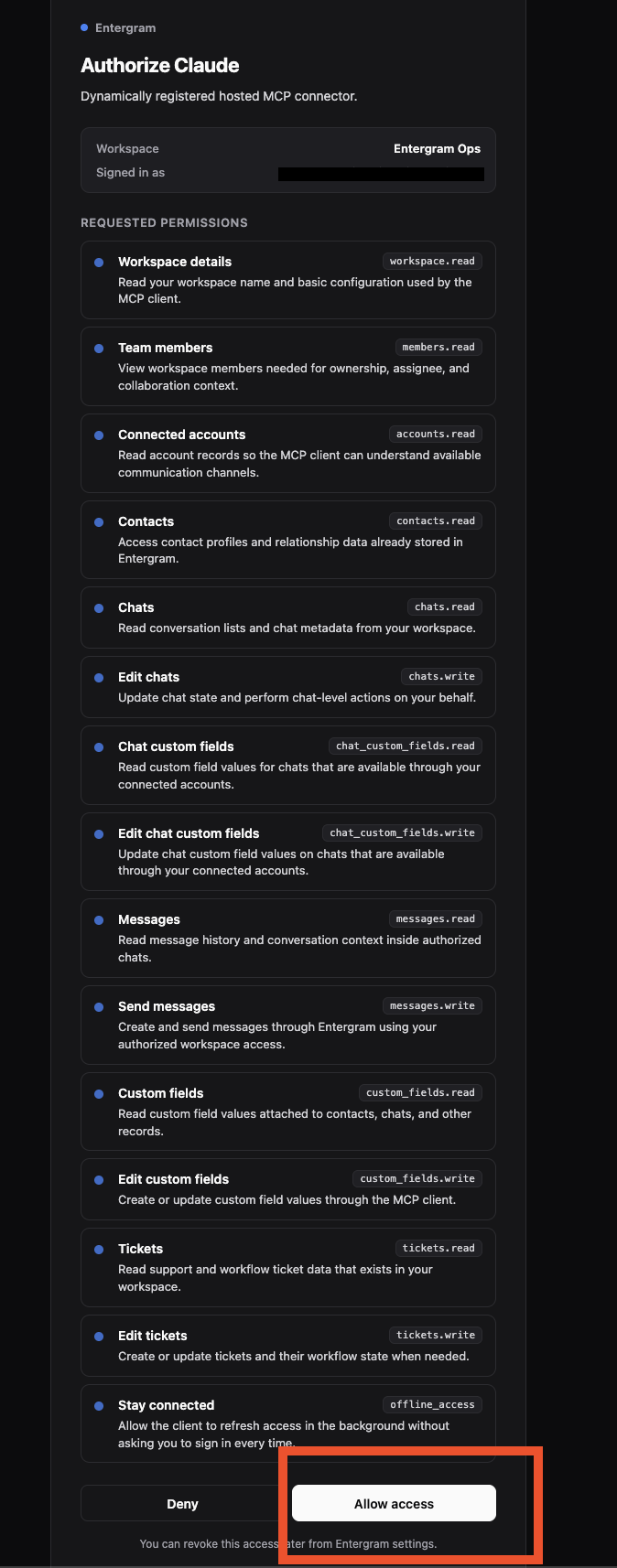
Section titled “Step 4 — Authorize”ChatGPT opens an OAuth popup. Log in with your Entergram account (just like a “Sign in with Google” prompt), review the permissions, and click Allow access. (Make sure pop-ups aren’t blocked.)
Step 5 — Use it
Section titled “Step 5 — Use it”In a chat, open the + / Developer Mode menu in the composer and enable Entergram. Then try: “List my Entergram workspaces.”
Troubleshooting
Section titled “Troubleshooting”- No “Add custom connector” / “Create” button — Developer Mode isn’t on, or your plan doesn’t support it. Re-check Step 1.
- The OAuth/login popup never opens — your browser is blocking pop-ups. Allow pop-ups for chatgpt.com and retry.
- Can’t connect / “invalid URL” — re-copy the MCP server URL from Settings → Workspace → Connectors → MCP and make sure there’s no trailing space.
- 403 errors on tool calls — your Entergram account needs owner or admin access to the workspace, and your plan must include MCP access.
Need the bigger picture? See the MCP Connector overview.