Workflow Tip
Combine filtering and bulk actions in your Telegram CRM: filter your table by a specific label, select all visible chats (up to 200), then apply another action to all of them at once.
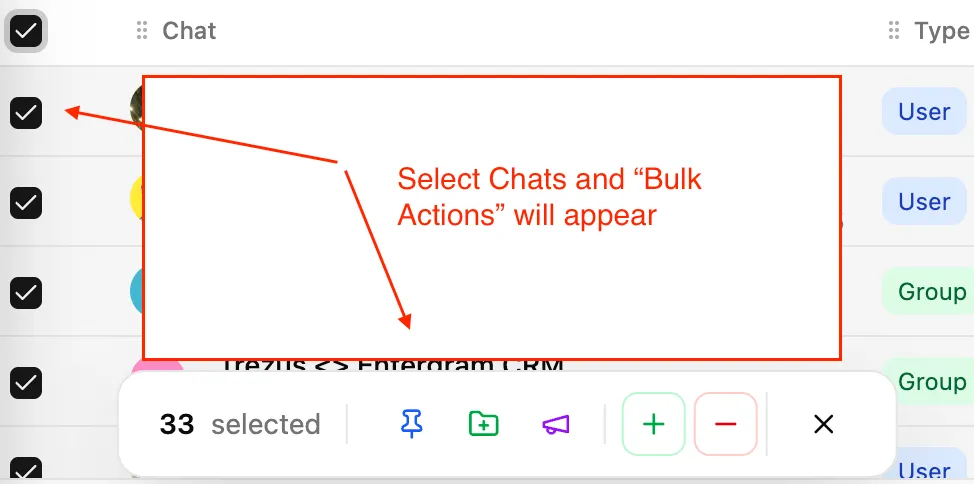
The Chats page in your Telegram CRM lets you perform Telegram bulk messaging actions on multiple chats at once. Select chats using the checkboxes to reveal the Action Bar at the bottom of the page.
Send the same message to multiple selected chats using the Telegram broadcast tool.
Note: If your message includes both markdown formatting and an attachment, Telegram sends them as separate messages due to API limitations.
Make broadcasts feel personal by inserting variables that auto-fill for each recipient in your Telegram outreach tool:
| Variable | Works with | Example output |
|---|---|---|
| name | Private chats, groups | ”John Smith” or “Marketing Team” |
| first_name | Private chats, groups | ”John” or “Marketing” |
| username | Private chats only | ”johnsmith” |
Variable syntax: Wrap variable names in double curly braces, e.g., name becomes the template variable for the contact’s full name.
Example template:
Hi [first_name], following up on our conversation...
Replace [first_name] with double curly braces around the variable name.
After sending a broadcast with the Telegram bulk messaging feature, you can automatically:
This helps keep your Telegram lead management database organized after outreach campaigns.
Save frequently used messages as templates for quick reuse in your Telegram CRM.
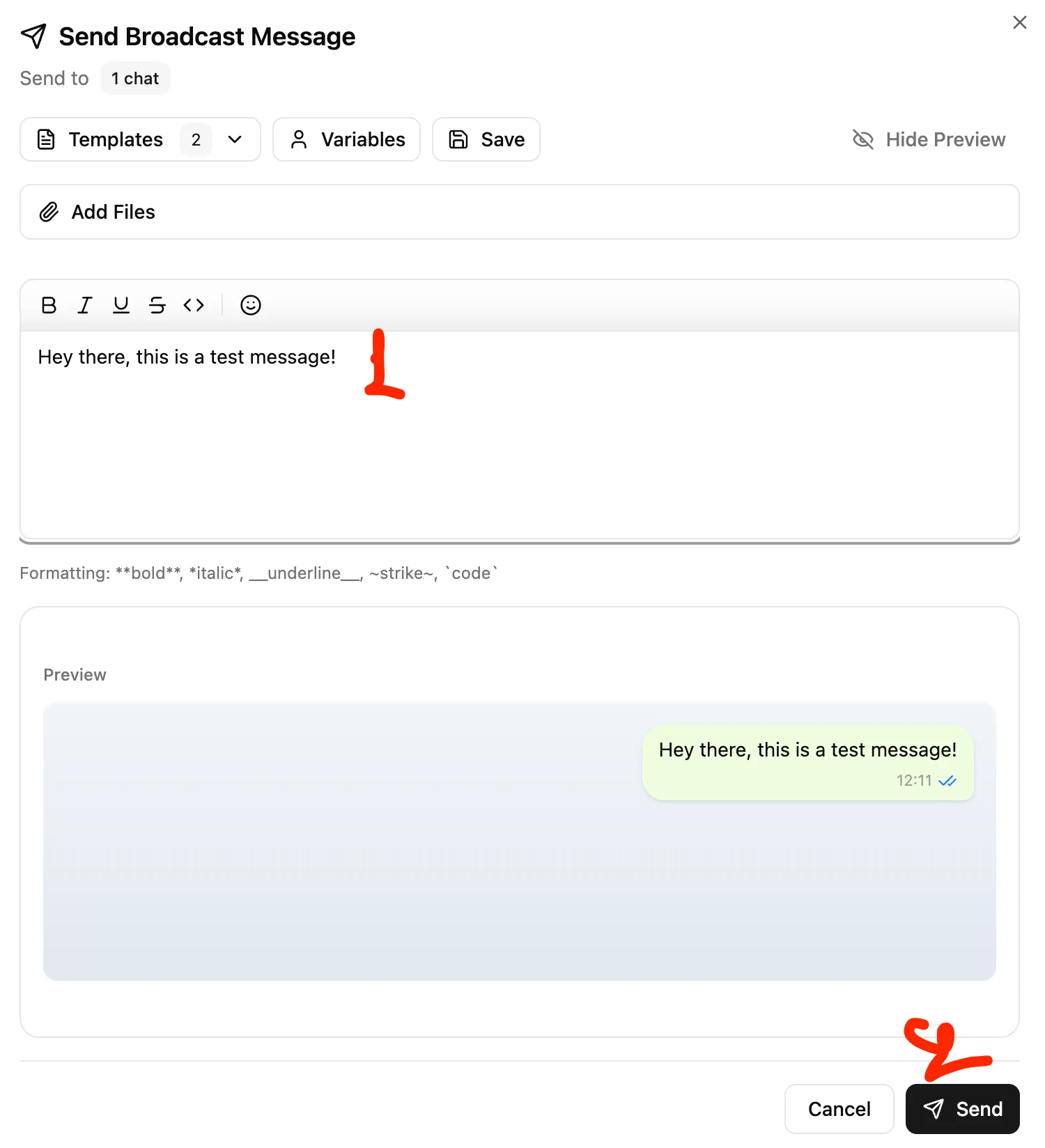
When composing a broadcast:
| Limit | Value |
|---|---|
| Maximum templates | 10 |
| Total storage | 100 MB |
| Per template | 10 MB max |
Templates include the message text and any attached files.
The Action Bar provides these quick actions for selected chats in your Telegram management tool:
| Action | Description |
|---|---|
| Pin Chats | Pin selected chats to the top of your table |
| Add to Folder | Move chats into a Telegram folder |
| Remove from Folder | Remove chats from a Telegram folder |
| Add Labels | Apply one or more tags to selected chats |
| Remove Labels | Remove tags from selected chats |
| Broadcast | Send a message to all selected chats |
This is useful for Telegram lead management after events—select all new contacts and tag them with the event name.
Workflow Tip
Combine filtering and bulk actions in your Telegram CRM: filter your table by a specific label, select all visible chats (up to 200), then apply another action to all of them at once.