将 Entergram 连接到 Perplexity
把 Entergram 作为自定义 MCP 连接器连接到 Perplexity,让你可以在 thread 或 Space 中调取并操作你的 Telegram CRM。
MCP 服务器 URL:
https://mcp.entergram.com/mcp- 拥有 owner 或 admin 权限的 Entergram 工作区。
- 一个 Perplexity Pro、Max 或 Enterprise 套餐。自定义连接器在免费套餐上不可用。 在 Enterprise 上,必须先由管理员开启 Allow members to add custom connectors。
- 无需下载。 你可以在 perplexity.ai 的 Perplexity 网页应用中,于 Settings → Connectors 下添加连接器。远程 MCP 服务器 URL 必须使用 HTTPS——Entergram 符合条件。
在 Enterprise 上,由管理员设置一次连接器并在组织范围内共享;成员随后在自己的设置中授权它——参见下方的 Enterprise 部分。
连接(Pro、Max)
Section titled “连接(Pro、Max)”第 1 步。 在 Entergram 中,前往 Settings → Workspace → Connectors → MCP,复制你的 MCP 服务器 URL(https://mcp.entergram.com/mcp)。
第 2 步。 在 Perplexity 中,前往 Settings → Connectors,点击 + Custom connector。选择 Remote。
第 3 步。 填写表单:
- Name:
Entergram - MCP server URL:
https://mcp.entergram.com/mcp - Authentication: OAuth(无需 Client ID 或 Secret——Perplexity 会自动发现 Entergram 的登录方式)
勾选 “I understand custom connectors can introduce risks”,然后点击 Add。
第 4 步。 点击 Entergram 连接器卡片。系统会提示你用 Entergram 账号登录(就像「Sign in with Google」那样的提示)——登录、查看权限,然后点击 Allow access。
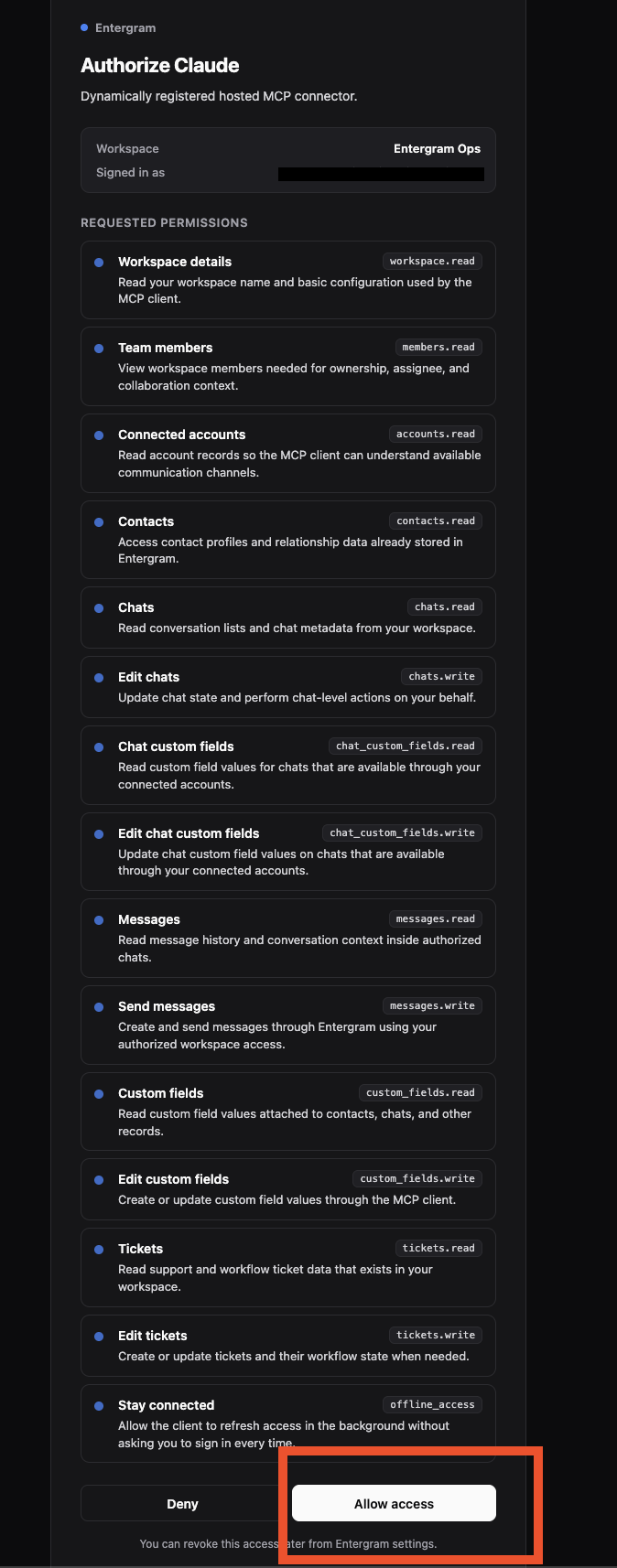
第 5 步。 要使用它,点击搜索框里的 +,确保 Entergram 已在 Connectors / Sources 下被选中。然后试试:「列出我的 Entergram 工作区。」
小提示: 在任意 Space 中添加一条简短的自定义指令,告诉 Perplexity 何时使用 Entergram(例如 “Use the Entergram connector for anything about my Telegram chats or tickets”)。这能让它自动选用正确的工具。
Enterprise
Section titled “Enterprise”管理员设置(一次性)。 前往 Enterprise settings → Connectors,开启 Allow members to add custom connectors,然后点击 + Custom connector。填写相同的 Name 和 URL,勾选风险确认框,点击 Add,然后为整个组织开启该连接器。
每位成员。 打开 Settings → Connectors,在 Custom 下找到 Entergram,点击它,用 Entergram 账号登录,然后点击 Allow access。
- 没有「+ Custom connector」按钮 — 你使用的是免费套餐,或(在 Enterprise 上)你的管理员尚未启用自定义连接器。
- 无法连接 /「invalid URL」 — 请从 Settings → Workspace → Connectors → MCP 重新复制 MCP 服务器 URL,并确保末尾没有多余空格。
- 连接器连上了但 Perplexity 从不使用它 — 在你的 Space 中添加一条自定义指令(参见上方的小提示),并确认 Entergram 已在 Connectors / Sources 下被勾选。
- 工具调用返回 403 错误 — 你的 Entergram 账号需要拥有该工作区的 owner 或 admin 权限,且你的套餐必须包含 MCP 访问权限。
需要了解全貌?请查看 MCP 连接器概述。